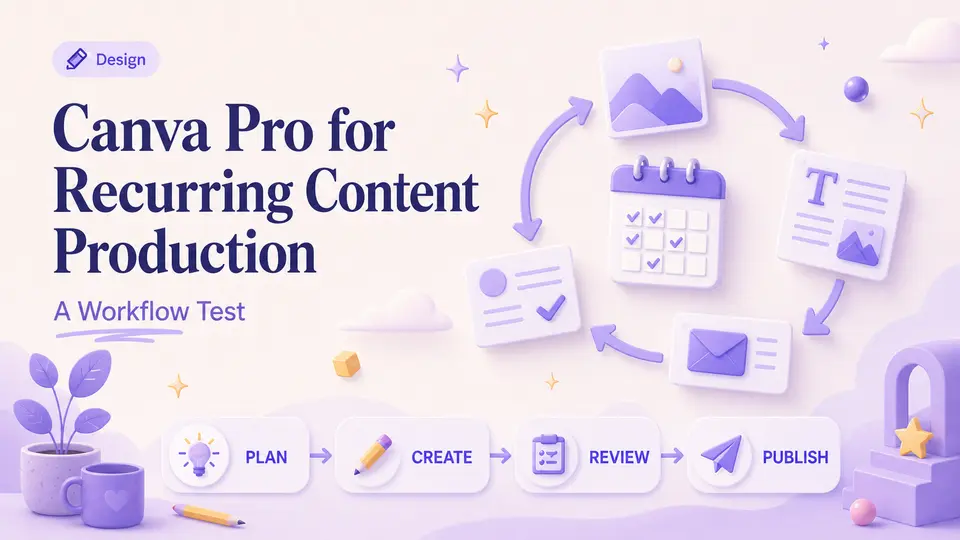
A solo marketer finishes one campaign concept and then faces the real workload: a presentation, three social formats, a short video, an email header, and revisions from two reviewers. The first design is not the bottleneck. Rebuilding, approving, organizing, and exporting the same idea across every channel is what consumes the week.
Canva Pro is easiest to judge as a production system rather than a collection of premium templates. Its value depends on how often brand assets, resizing, reusable layouts, media, and collaboration remove repeated work. The decision also carries account and licensing consequences: the person who starts a workspace may control the Brand Kit and source files long after a campaign or client relationship ends.
The short answer
- Evaluate Canva Pro against the volume and variety of assets you actually produce.
- An individual plan, a team workspace, and licensed content each create different questions.
- Confirm account ownership and the exact offer scope before moving brand assets into a workspace.
List the design jobs you repeat
Canva Pro is easiest to justify for recurring production: presentations, social posts, campaign variants, simple videos, documents, and branded templates. Count how many assets you create in a month and where the bottleneck occurs. The plan is more valuable when templates, brand controls, resizing, background removal, or premium media remove repeated work.
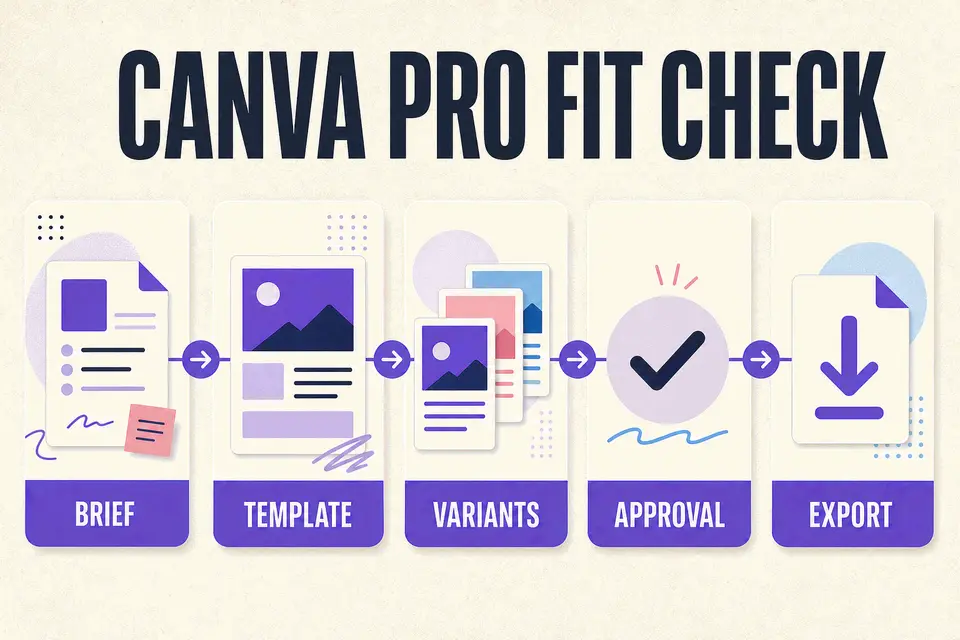
A one-off poster is a different need from a weekly content system. Build a sample project that includes the formats, approvals, exports, and brand constraints you face. Time the complete workflow, including review and adaptation, before deciding whether the Pro plan improves it enough.
Measure a month of production, not a single design
Choose one representative campaign and count every deliverable, revision, reviewer, format change, stock asset, and export. Track time from the first brief to final approval. Include the unglamorous work: finding the latest logo, correcting an outdated color, replacing an image whose rights are unclear, and rebuilding a layout after copy changes. That is where a production plan can earn its place.
Run the same brief through the workflow you have now, then repeat it with the Canva capabilities available to you. Record what becomes faster and what still requires manual design judgment. A template that produces five weak variants is not a saving. A controlled system that lets a colleague create approved variations without breaking the brand may be. Use the complete approved campaign, not the first exported image, as the unit of value.
- Count each required size, channel, language, and approval round.
- Record time spent searching for assets and correcting brand inconsistencies.
- Test the exact export quality and file format required downstream.
- Measure how easily another person can make a safe, approved update.
A one-off poster is a different need from a weekly content system.
Taploop decision principle
Separate feature access from content licensing
Canva's current Pro page highlights premium templates and media, brand tools, resizing, background removal, and AI-assisted creation. Availability can vary by feature, region, and provider updates. Confirm the tools that matter on the official page rather than relying on an old feature comparison.
Access to a premium asset does not make every use unrestricted. Review Canva's content license for client work, merchandise, templates, logos, and other commercial contexts. Keep a record of the asset and license terms that applied when the final design was created.
- Check whether the project is personal, client, team, or resale work.
- Confirm how premium elements may be used in the intended output.
- Review generated content for accuracy, originality, and brand resemblance.
- Export a test file in the dimensions and quality the channel requires.
Choose the right account and collaboration model
Canva Pro is positioned for individual use, while team administration and shared ownership may require a different plan or workspace structure. Decide who should control the account, Brand Kit, source files, billing, and recovery. Client assets should not become trapped in a personal account by accident.
On the Taploop page, verify whether the offer names the plan and seat count, applies to an existing account, and publishes the term, region, renewal, access, and remedy details. A product label alone does not answer those questions.
Know when an individual Pro workflow is not enough
An individual plan may be a poor organizational fit when several people need managed seats, shared ownership, centralized brand controls, auditability, or a formal offboarding process. Do not solve a team-governance problem by sharing a personal login. Review Canva's current team offering and your organization's procurement requirements when multiple people or client accounts depend on the workspace.
Canva may also be the wrong primary tool when the work requires advanced illustration, photo manipulation, motion finishing, print production, or a generation workflow better served elsewhere. It can still support layouts and adaptation, but buying it for a specialist task creates a second workflow without removing the first. Choose the tool that addresses the most expensive repeatable step and define how source files will move between systems.
Compare the creative workflow, then check the offer
Midjourney is oriented toward generative image exploration, while Adobe Firefly combines generative workflows with Adobe's creative ecosystem. Canva Pro centers broader layout and production work. Many creators may use more than one, but the first purchase should solve the clearest bottleneck.
Before checking current Canva Pro offer details, confirm the plan identity, account and seat ownership, content-license needs, supported device or browser, term, total, region, renewal treatment, and order remedy. Recheck official documentation when the project or plan changes.
The verdict
Verdict: strongest for recurring, multi-format content production
Canva Pro is easiest to justify for an individual who produces branded content repeatedly and can point to concrete savings in templates, adaptation, premium media, or asset organization. It is less compelling for one-off designs or specialist work that still requires another primary application. Teams should make a separate plan and governance decision instead of assuming an individual workspace will scale safely.
Before checking an offer, decide who should own the account, Brand Kit, source files, client assets, billing, and recovery. Then confirm the exact plan, seat scope, existing-account eligibility, term, region, renewal behavior, final total, access method, and remedy details on the live Taploop product page. Content-license questions should be resolved against Canva's current terms for the intended output, not a broad promise attached to the product name.
Product guide
Need the complete Canva Pro guide?
Review product capabilities, platforms, official sources, and the current Taploop buying path in one place.
Compare before you choose
These comparison and category pages help you review nearby products and tradeoffs before choosing.
Continue with a related workflow
These nearby articles cover other practical questions about canva pro content production workflow that you may want to explore next.

Ready to review Canva Pro?
Check the product page for the currently published plan, term, account, region, renewal, price, and remedy details. Purchase controls appear only when the required offer data and inventory are present.
Frequently asked questions
Is Canva Pro intended for teams?
Canva currently positions Pro primarily for individuals. Review its current team offerings when you need managed seats, shared administration, centralized controls, or organization-owned assets. Do not use a shared personal login as a substitute for the plan, security, and offboarding structure a real team requires.
Does Canva Pro remove all content-license restrictions?
No. Premium content remains subject to Canva's current content license and the intended use. Review the terms for client work, merchandise, templates, logos, resale, and other commercial contexts. Keep a record of important source assets and the terms reviewed when the final work was approved.
Can I use Canva Pro for client work?
The answer depends on the assets used, the deliverable, and Canva's current content-license terms. Confirm that the intended use is permitted, document client ownership and handoff, and avoid leaving source files or Brand Kit material in an account the client cannot control after the engagement ends.
What account details should I confirm?
Confirm who owns the email, workspace, source files, Brand Kit, billing, recovery, and client assets. Decide whether the offer applies to an existing account and whether a future team or client handoff will be possible under the current workspace structure before moving important production material.
What should a Taploop Canva Pro offer identify?
Look for the exact plan, seat scope, account and access path, term, region, renewal treatment, final total, and remedy terms. The live product page should enable purchase controls only when the required data and inventory are present. Do not infer licensing, team eligibility, or immediate activation from the product label.
Official sources reviewed
Product plans change. These provider sources were checked on July 18, 2026; review them again when you make a purchase decision.